
16 October 2026
release 10-16-26Host your blog on your own domain even if you use Squarespace or Wix, write and edit blogs in the Blog Post panel, review links that expire and can be revoked, a cleaner review page for your clients, Reddit threads with reply ideas from your AI Visibility Manager, your Google Business Profile fixes prepared and written for you, a one-tap dialog when your agent needs a decision, Connections grouped into tabs, a model picker that recommends one model for each Agent, previews that show your whole image, and fixes for the free AI visibility report email and retired AI models.
Host your blog on your own domain, even on Squarespace or Wix New
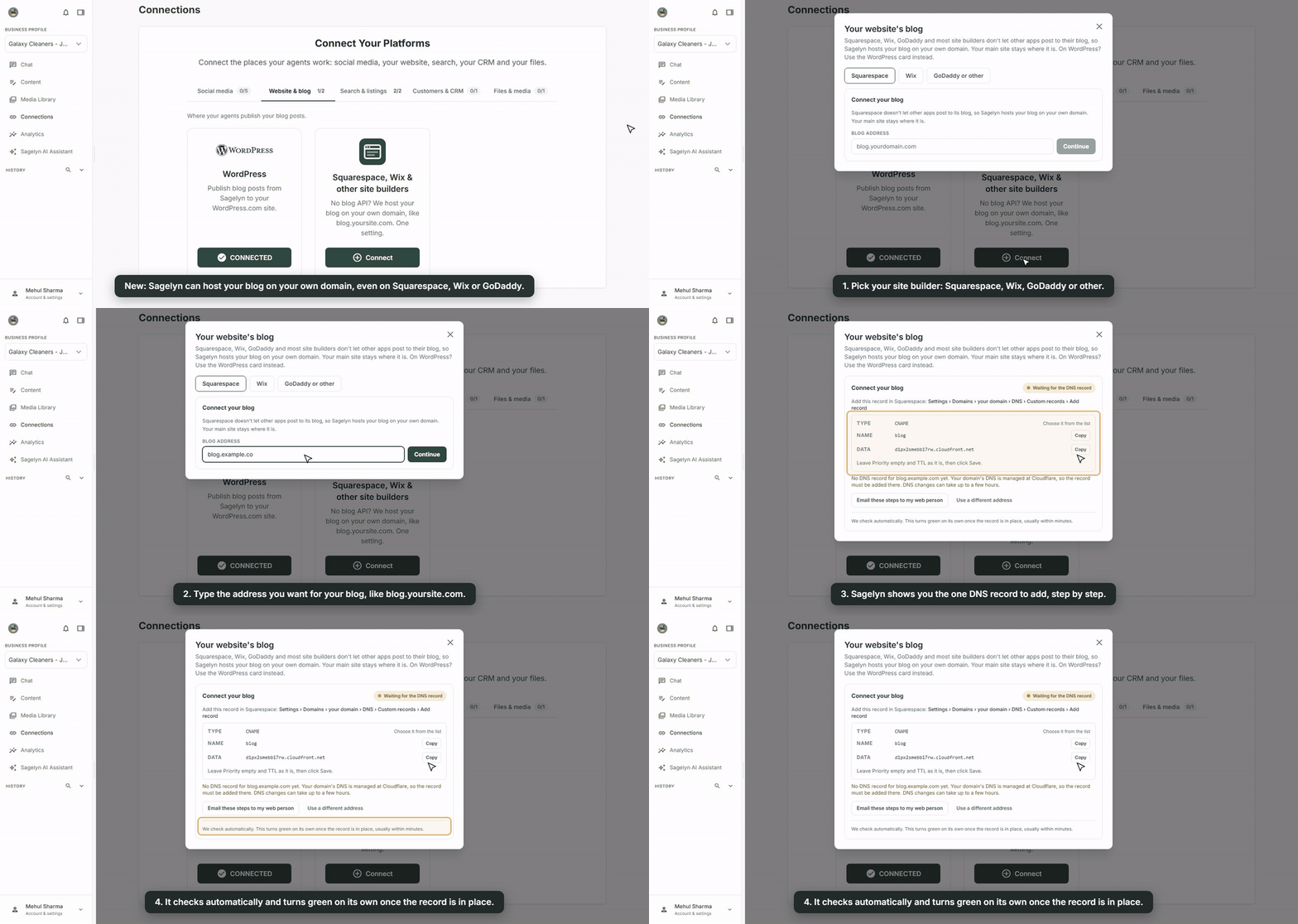
No WordPress site? Sagelyn can host your blog for you, on an address of your own like blog.yoursite.com. Open Connections, choose the Website & blog tab and press Connect on Squarespace, Wix & other site builders. Pick your site builder, type the address you want, and Sagelyn shows the one DNS record to add at your domain host, step by step. It checks automatically and shows your blog as connected once the record is in place. Then add a Blog link to your website's menu so visitors can find it.
Write, edit and publish your blog from the Blog Post panel New
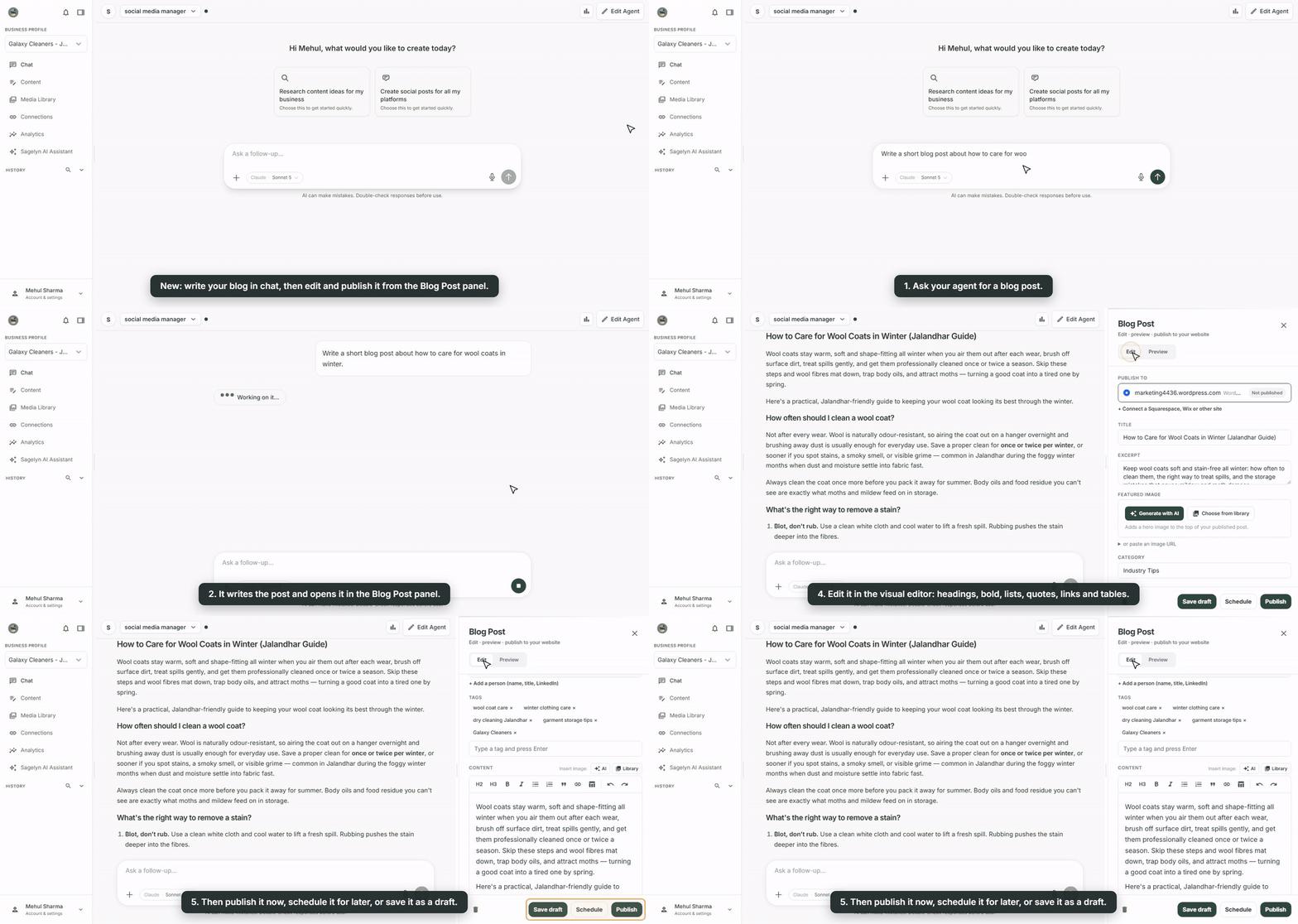
Ask the Social Media Manager for a blog and it opens in the Blog Post panel next to the chat. Publish to lists the sites you've connected, with a shortcut to connect a Squarespace, Wix or other site. A visual editor lets you format the post with headings, bold, italics, lists, quotes, links and tables, and change the title, excerpt, featured image and tags. When you're happy, press Save draft, Schedule or Publish. Your agent now also writes each blog to be found in Google and quoted in AI answers.
Your agent checks a blog topic fits your business New
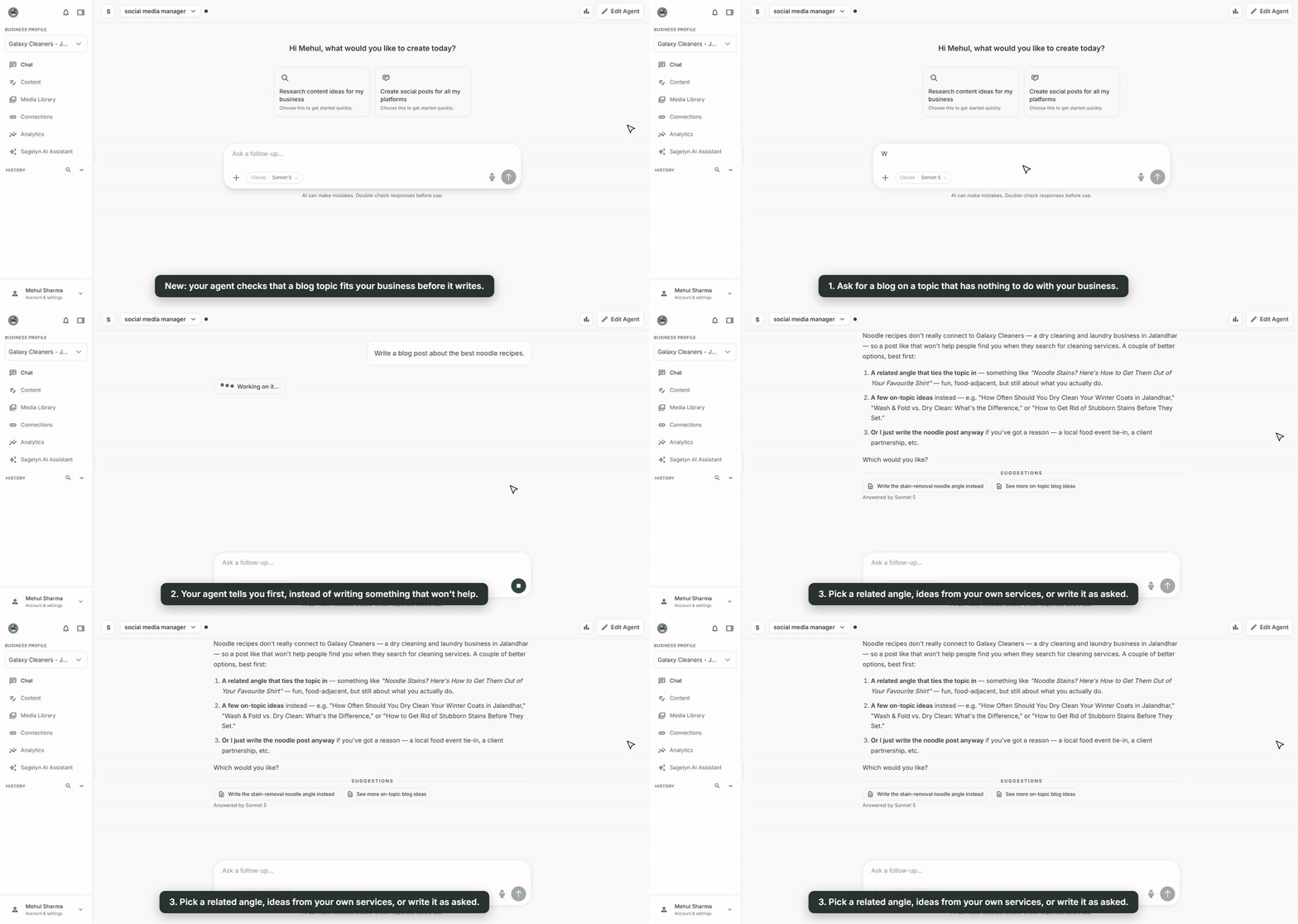
Ask for a blog on a topic that has nothing to do with what you sell and your agent now says so before it writes. It offers a related angle that ties the topic to your business, ideas taken from your own services, or to write it exactly as asked if you have a reason. A blog about a topic your customers don't search for does little to bring them to you.
Review links now expire, and you can revoke them New
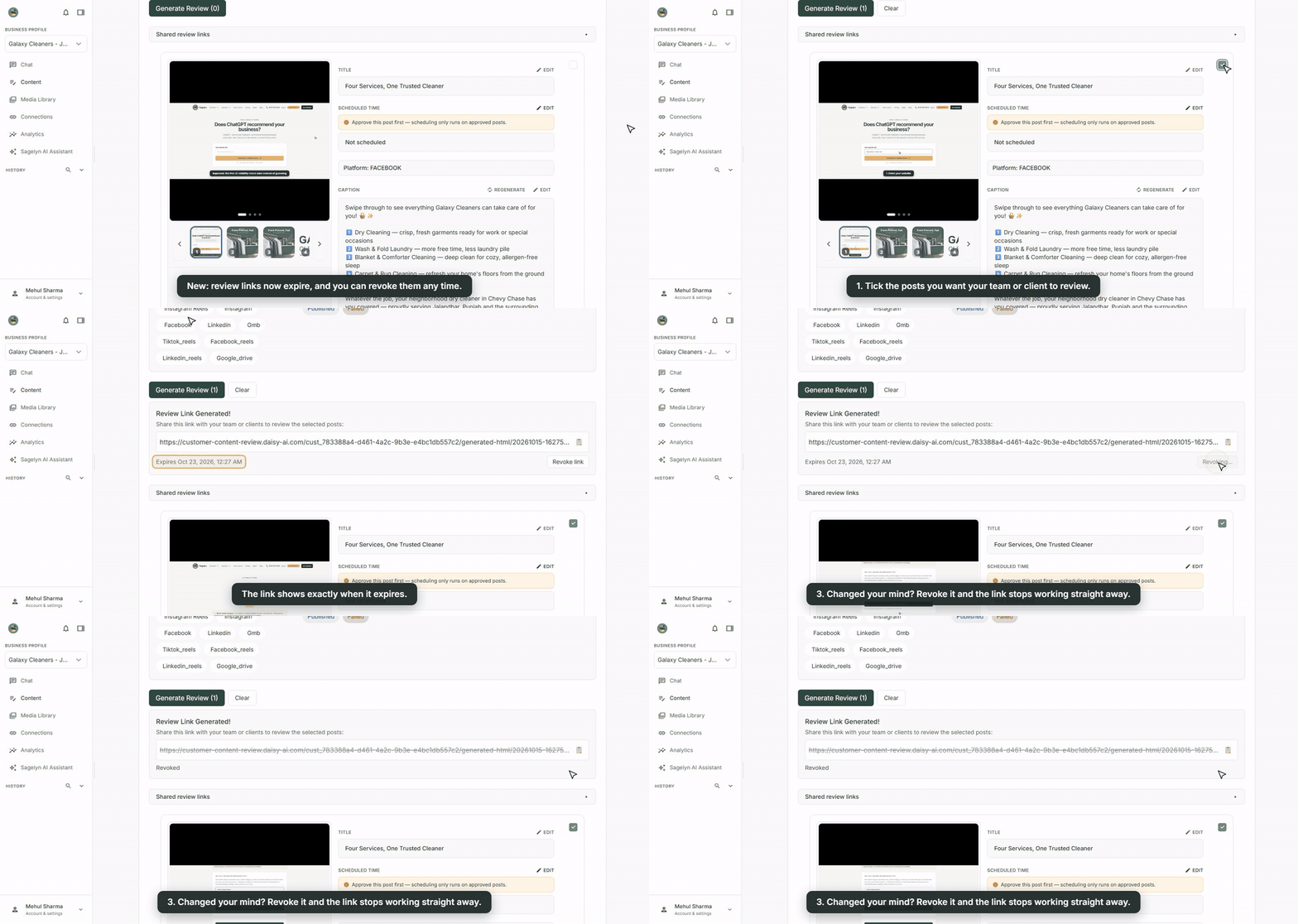
Review links you share now expire. By default a link stops working 7 days after the last post in it is due to go out, or 7 days after you create it if nothing in it is scheduled for later. The link card shows the exact date and time. Shared one by mistake? Press Revoke link and the page stops working straight away. The Shared review links list in Review Posts shows every link you've shared, with its status, its expiry and how many posts it holds.
A cleaner review page for your clients Improved
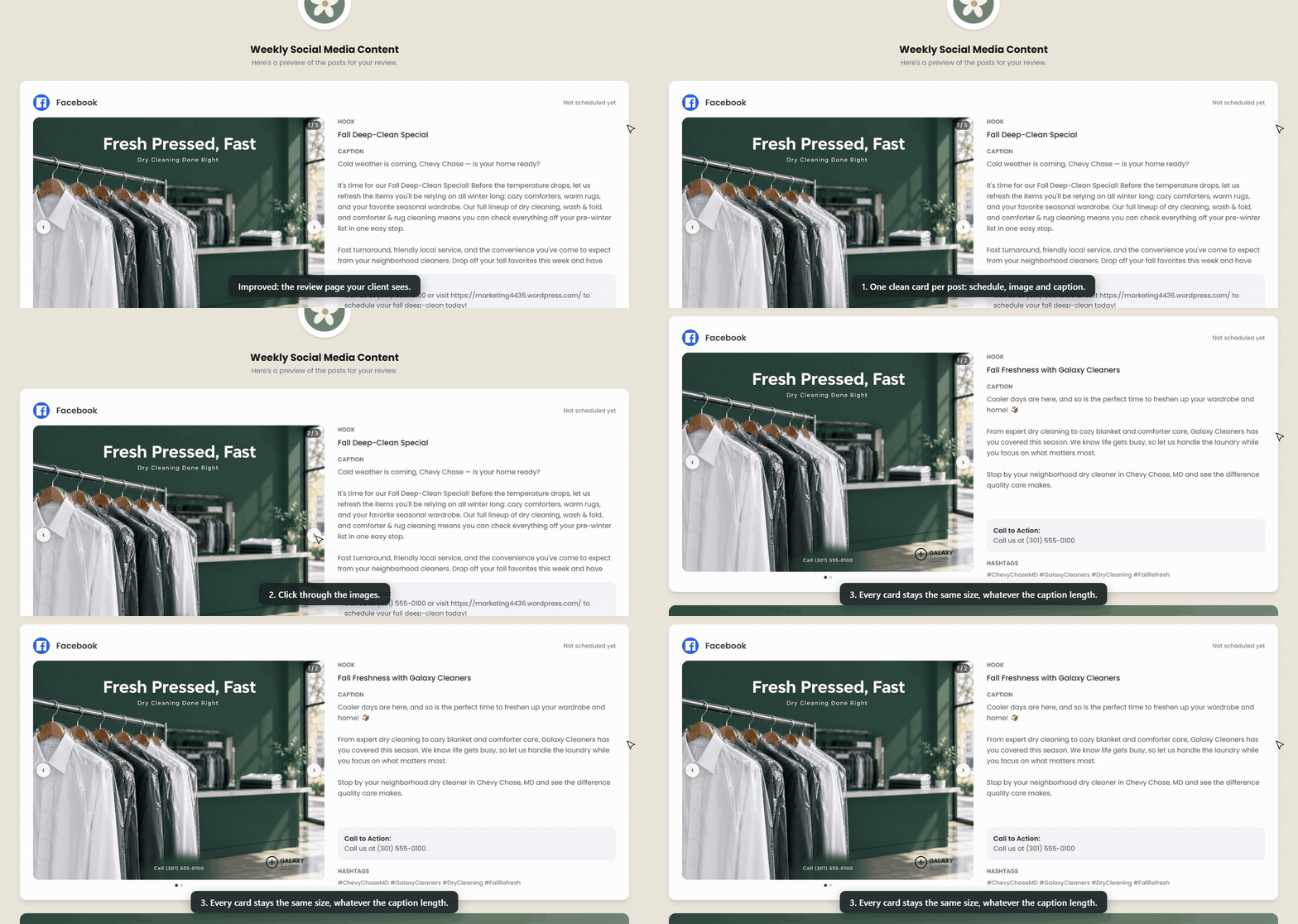
The page your client opens now shows one card per post: the platform, when it's scheduled, the image or video, and the caption with its call to action and hashtags. Pictures keep their own shape, carousels have slides your client can click through, and on a computer a long caption scrolls inside its card instead of stretching the page.
Ask your AI Visibility Manager what to answer on Reddit New
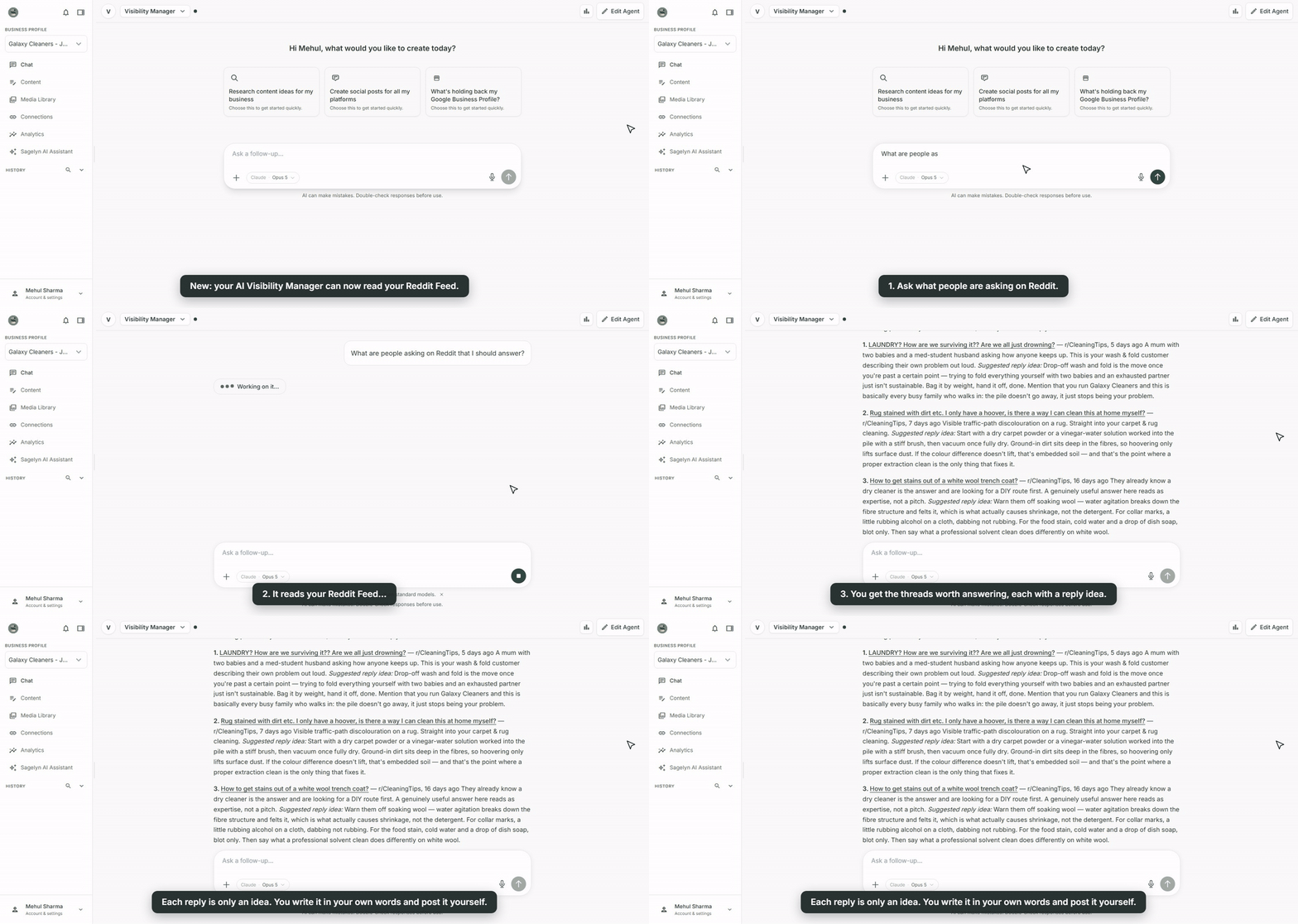
In chat with your AI Visibility Manager, ask something like What are people asking on Reddit that I should answer? It reads your Reddit Feed and lists the threads worth answering: the subreddit, how long ago it was posted, why it's worth your time, and a suggested reply idea. If you've run an AI visibility check, it puts first the threads that match a question where AI recommended someone else. Each reply is only an idea: write it in your own words, post it yourself on Reddit, then mark the thread replied in the Reddit tab so it stops coming back. No Reddit Feed yet? It points you to Find New Questions in the Reddit tab. The Reddit Feed shortcut is now in the AI Visibility Manager's + menu too.
Your Google Business Profile fixes, prepared and written for you Improved
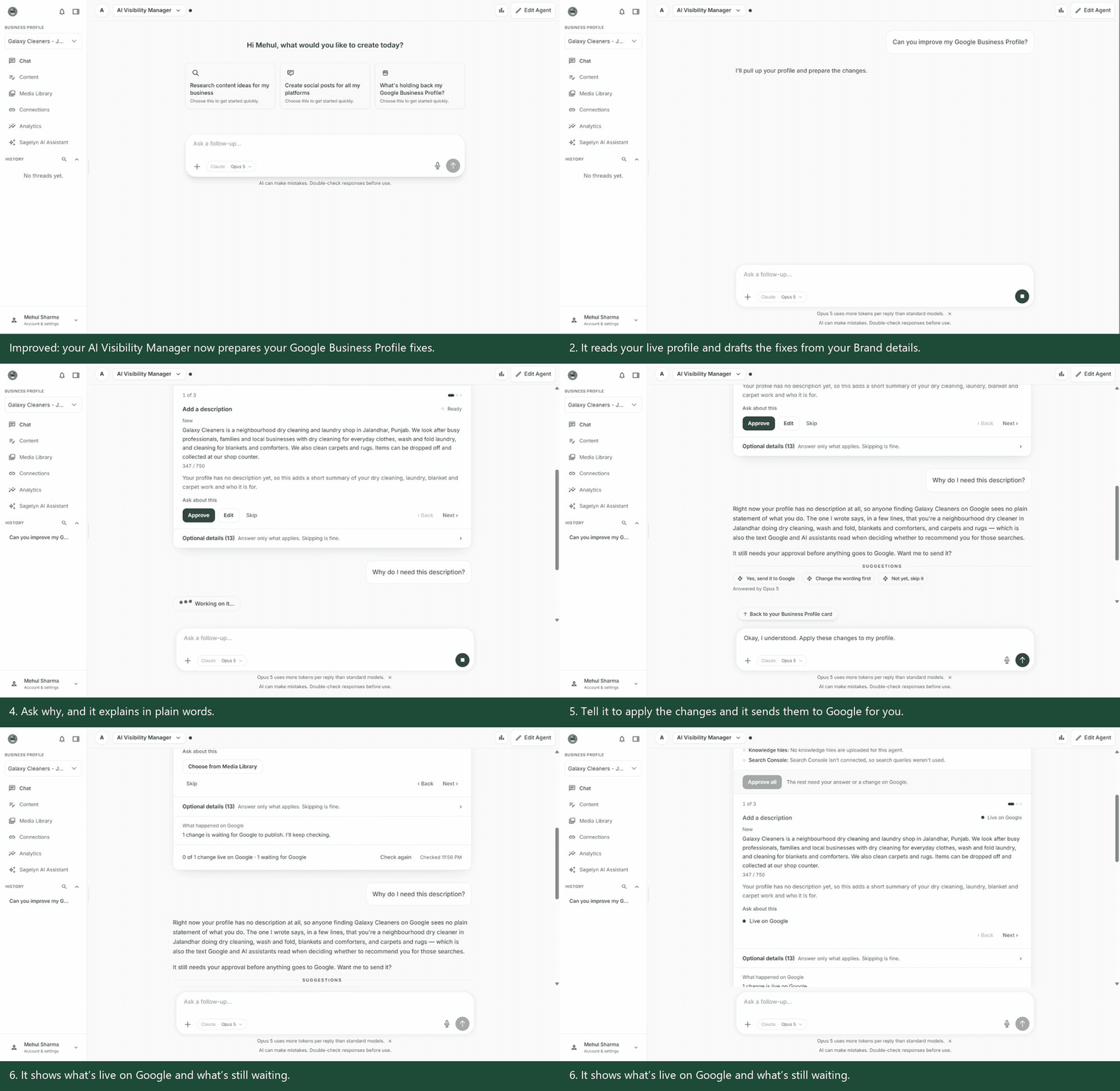
Pick What's holding back my Google Business Profile? on the AI Visibility Manager's welcome screen, or just ask it to improve your profile. Sagelyn reads your live listing and your Brand details, then prepares each fix already written, with the reason beside it. Press Approve, Edit or Skip on each one, or Approve all. Not sure about a fix? Ask why in chat and it explains in plain words, then tell it to apply the changes and it sends them to Google for you. Extra details such as parking stay in a collapsed Optional section that you can skip. The card then shows what's live on Google and what's still waiting.
Your agent can ask you a question in a one-tap dialog New
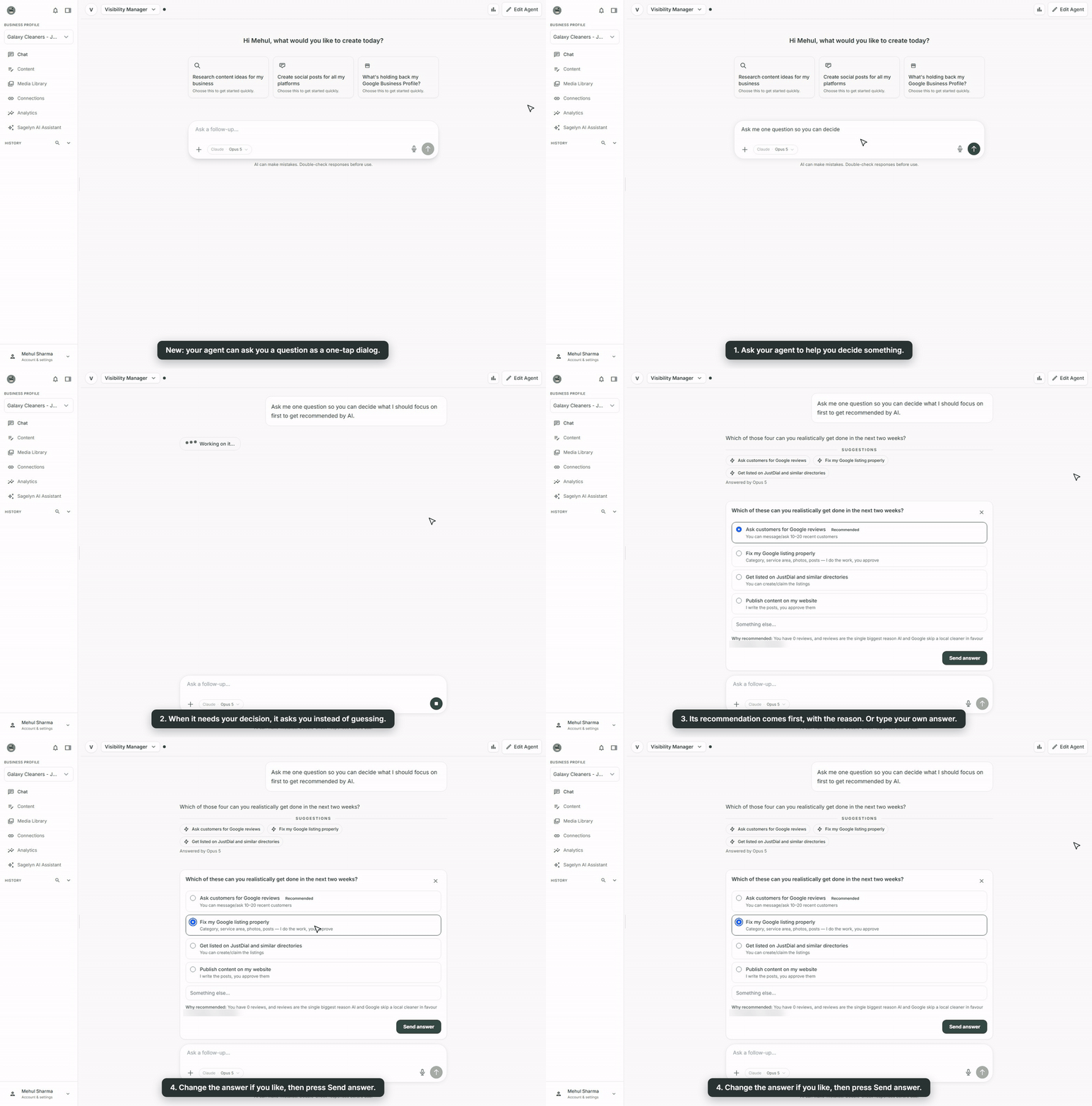
When an agent needs a decision from you, it can now ask in a dialog instead of a paragraph of questions in the chat. Its recommended answer is already selected, with the reason beside it. Keep it, pick another option or type your own, then press Send answer. Prefer to answer in the chat? Close the dialog and reply there.
Connections are grouped into tabs Improved
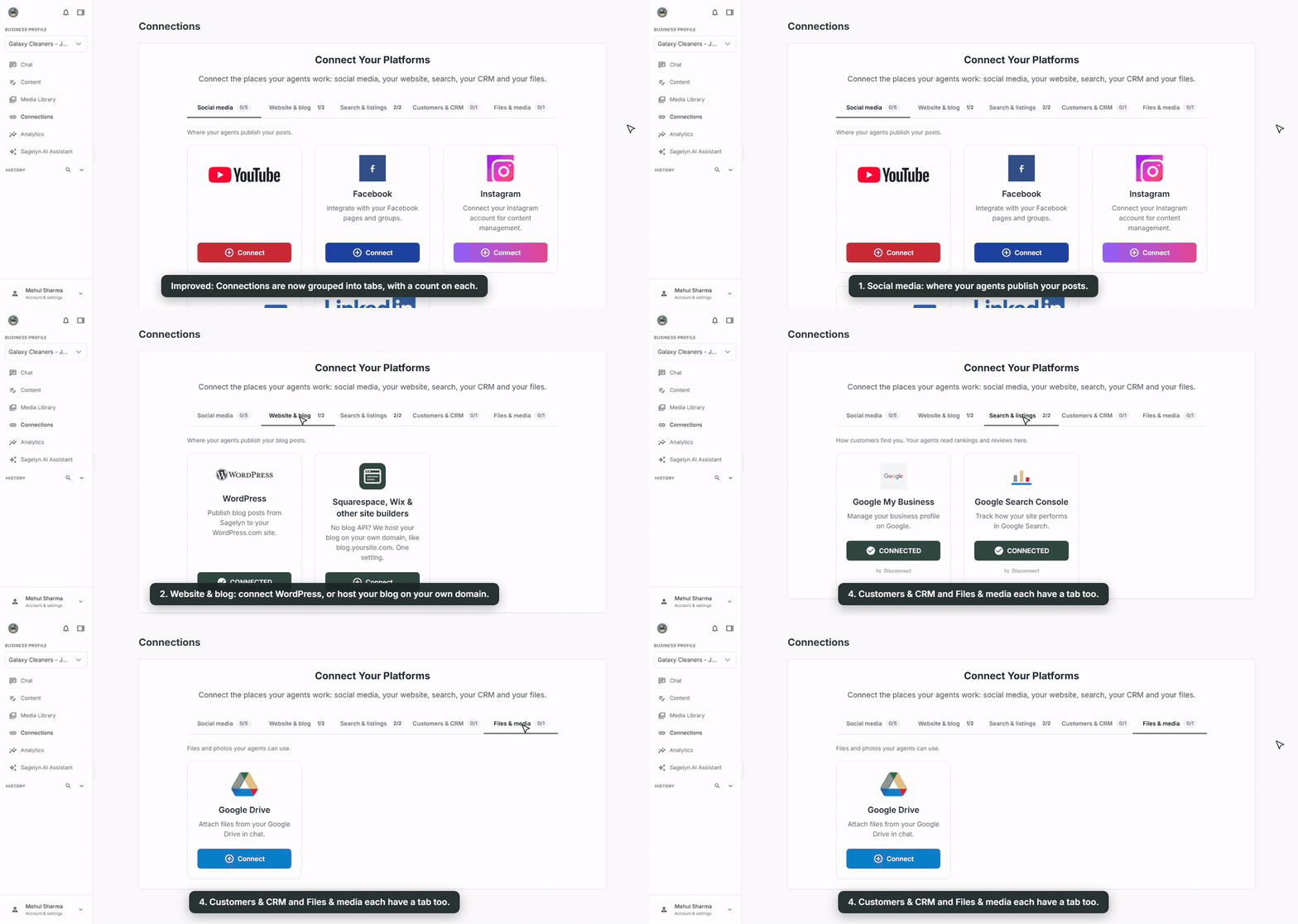
Connections now sit in five tabs, each showing how many of its platforms are connected: Social media, Website & blog, Search & listings, Customers & CRM and Files & media.
The model picker recommends one model for each Agent Improved
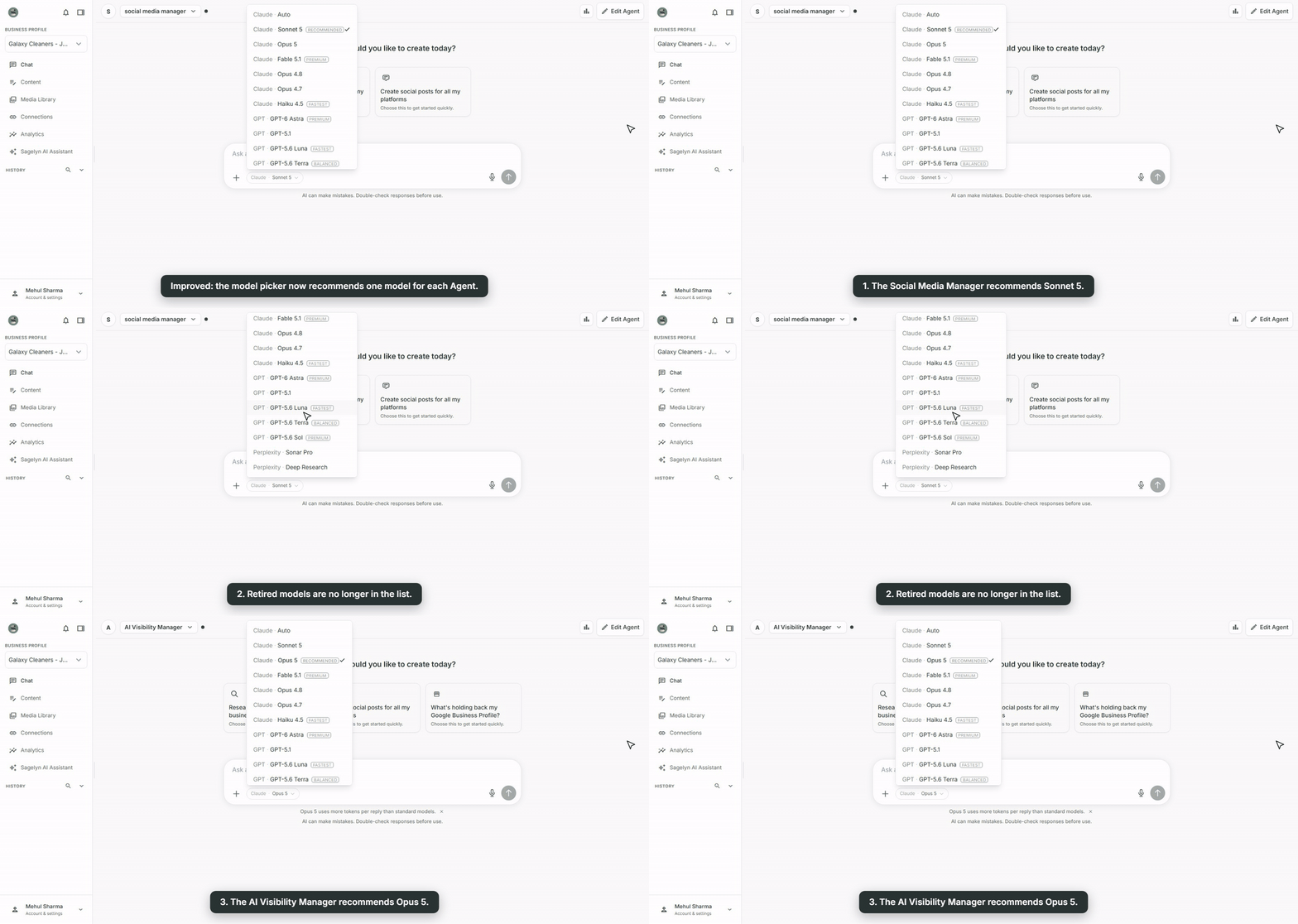
The model list in chat now tags one model as Recommended for the Agent you're chatting with: Sonnet 5 for the Social Media Manager, and Opus 5 for the AI Visibility Manager. Retired models are no longer in the list.
Post previews show your whole image Fixed
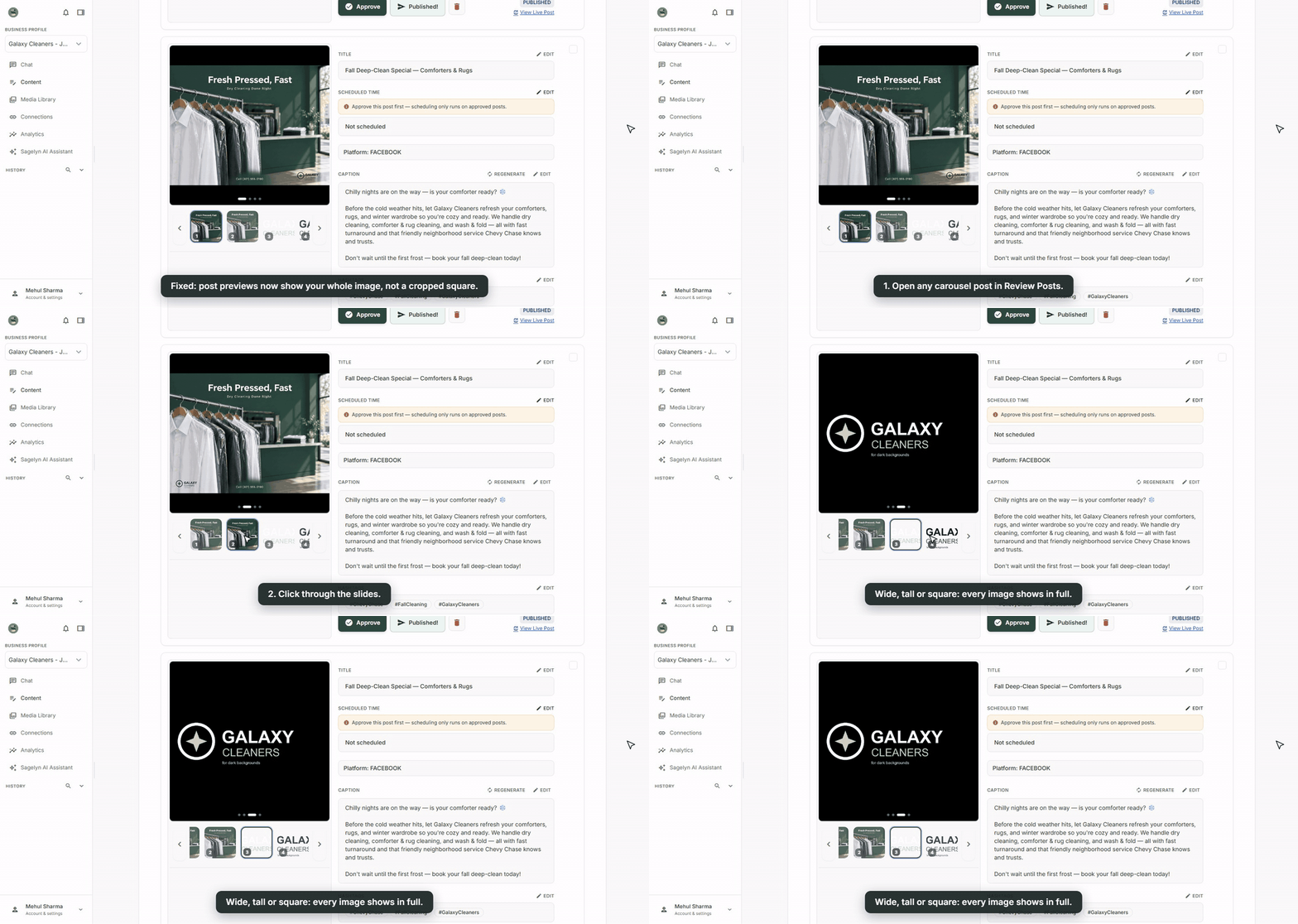
Portrait and landscape pictures were cropped in the carousel preview and in the single-image preview in chat, which made it look as if your post would publish cropped. The previews now show the whole picture. Publishing is unaffected: it always used your original image.
- The free AI visibility check now emails you the result. After you run the check at sagelyn.ai/visibility, you get an email with your score and, once it's ready, a link to your full report.
- Agents on a retired AI model keep working. An Agent still set to a retired model now answers on the current model from the same provider, so there is nothing to edit.