
23 October 2026
release 10-23-26Ask your AI Visibility Manager for a full audit with your 5 biggest fixes, agents that remember how you like things done and show you what they remember, agents that save documents for you, a planned date on pending posts, Bing Webmaster Tools beside Google, a two-step setup for a new Brand, and fixes for avatar video framing, Search Console data and Agent profile pictures.
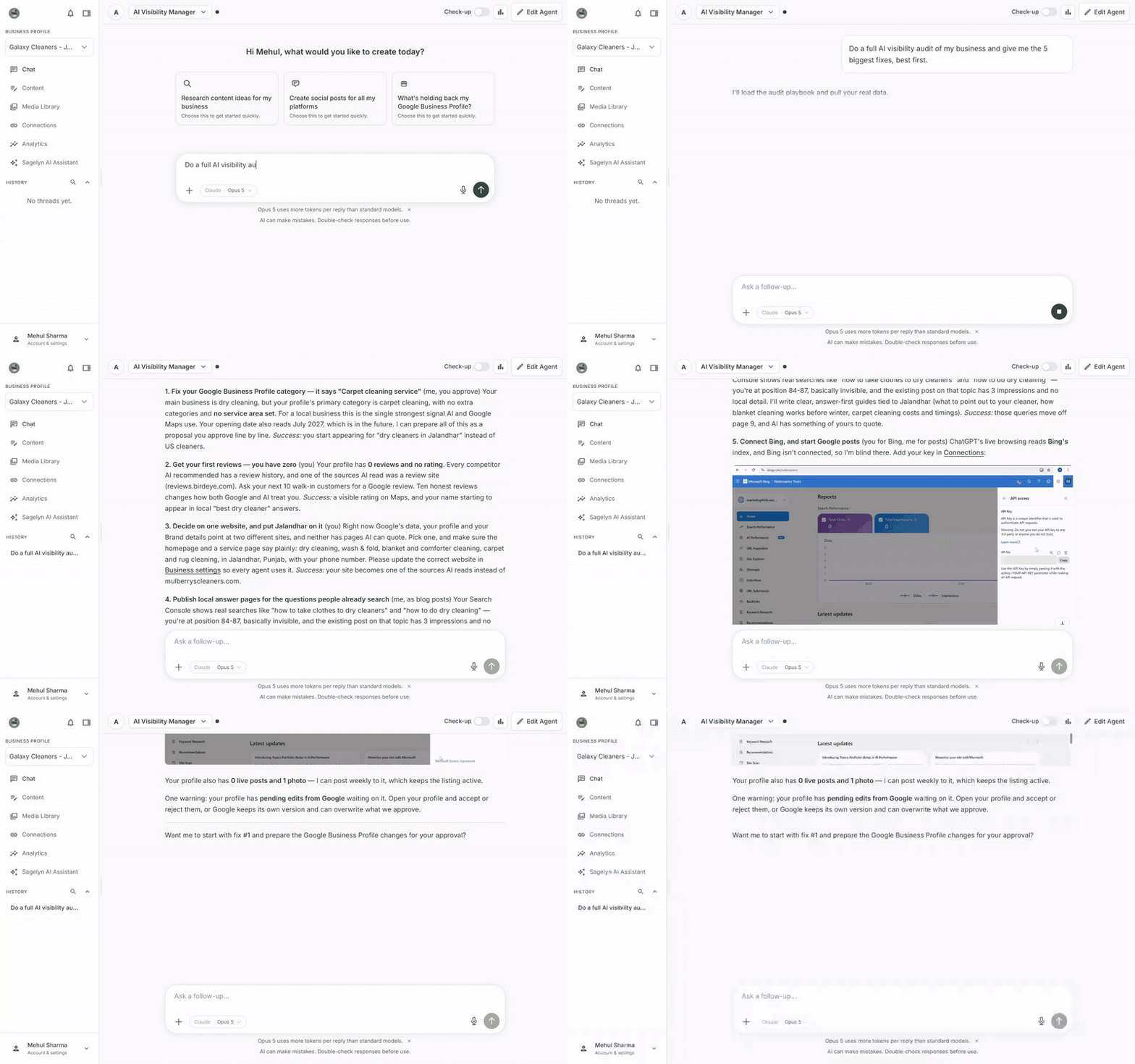
Get a full AI visibility audit in chat New
Open your AI Visibility Manager's chat and ask Do a full AI visibility audit of my business. It works through your real data the way our team does for done-for-you clients: whether AI names you, your Google Business Profile, your website and the searches that find you. Then it gives you the 5 biggest fixes, best first, and says who does each one: your Social Media Manager, your AI Visibility Manager, or you. It also tells you what it couldn't check and why, so nothing is guessed. The AI Visibility Manager is part of the Pro plan.
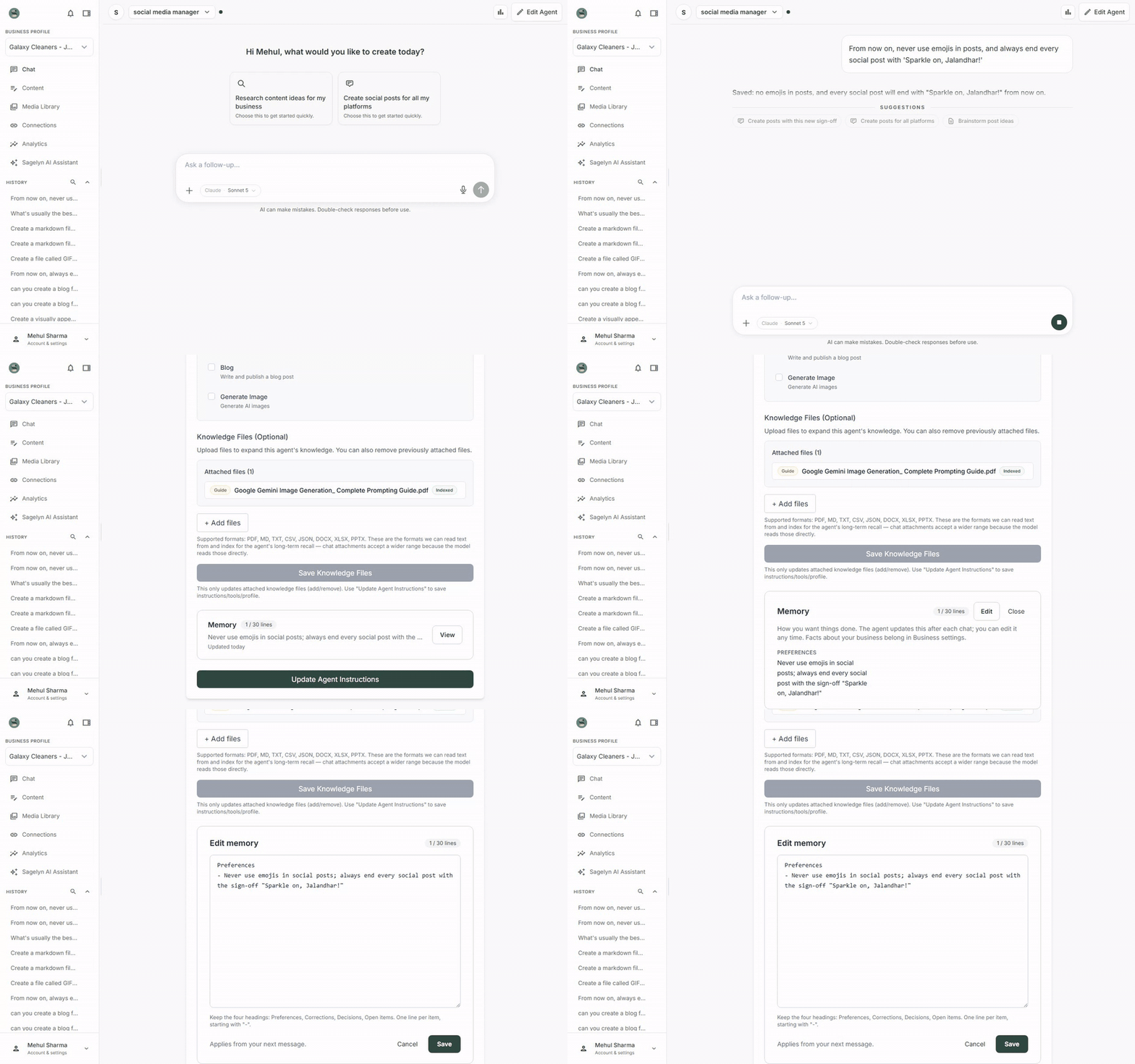
Your agents remember how you like things done, and show you what they remember New
Tell an agent a preference, like never use emojis or always end posts with your slogan, and it saves it and tells you: Saved: followed by what it will remember. New chats follow it. Open Edit Agent and the Memory section shows it in one row, with a short preview and when it was last updated. Press View to read it as one short note under four headings: Preferences, Corrections, Decisions and Open items. Point at a line and press Remove, or press Edit to change the whole note in one box, then Save. It applies from your next message. If your Brand has one Social Media Manager, it also learns from Review Posts: when you change a post's wording or reject one with a reason, it saves the lasting preference as a correction. One-off fixes like a typo are ignored. Business details such as your phone number belong in Business settings, and your agent points you there so every agent uses the same, up-to-date details.
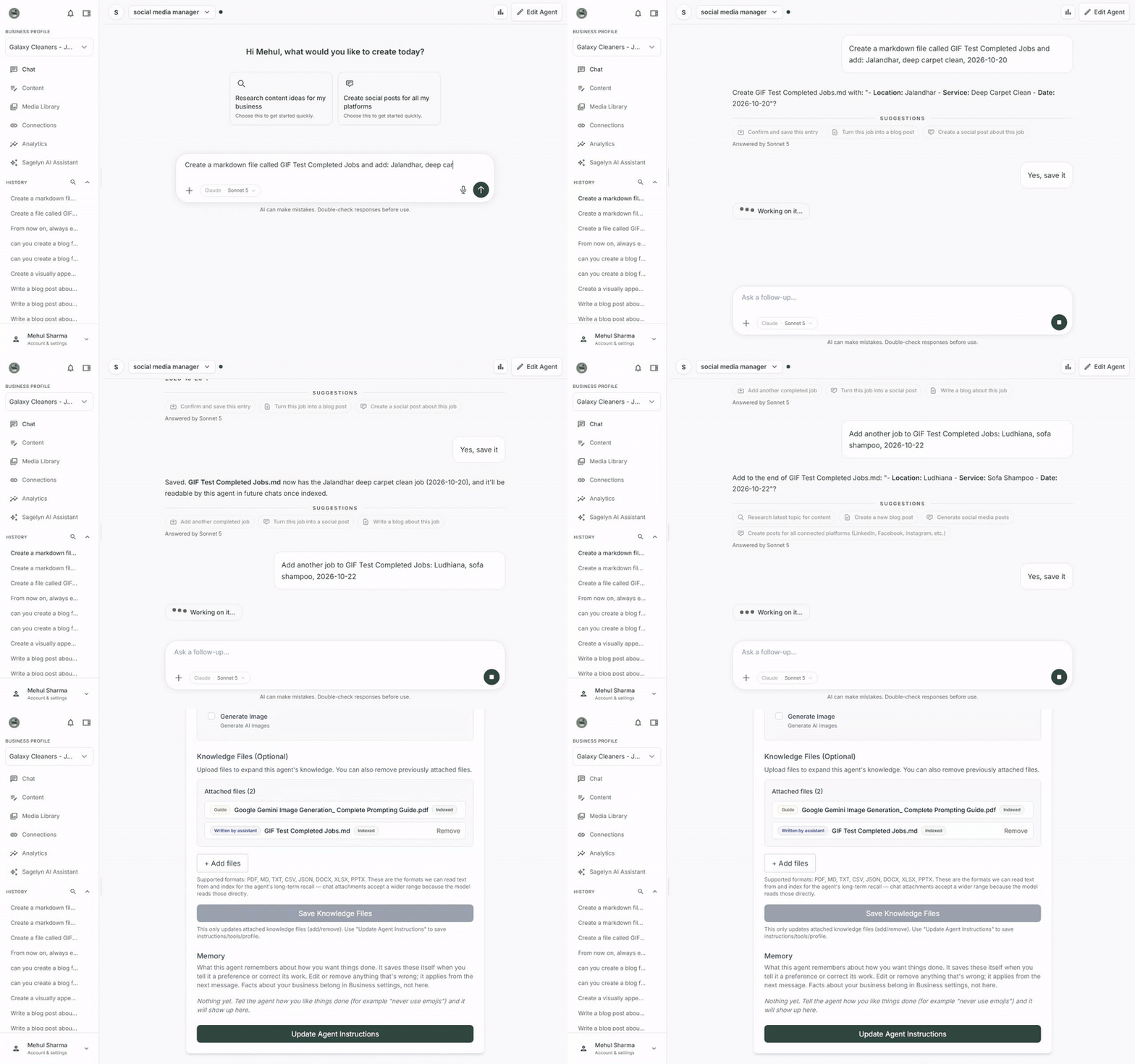
Your agents can save documents for you New
Ask an agent to keep something, like Create a file called Completed Jobs and add today's job, and it shows you exactly what it will save, with Yes, save it already picked. Press Send answer and the file is added to the agent's knowledge files, marked Written by assistant. Ask it to add another entry later and it adds it to the same file, again only after you say yes. Every future chat can use what's in it.
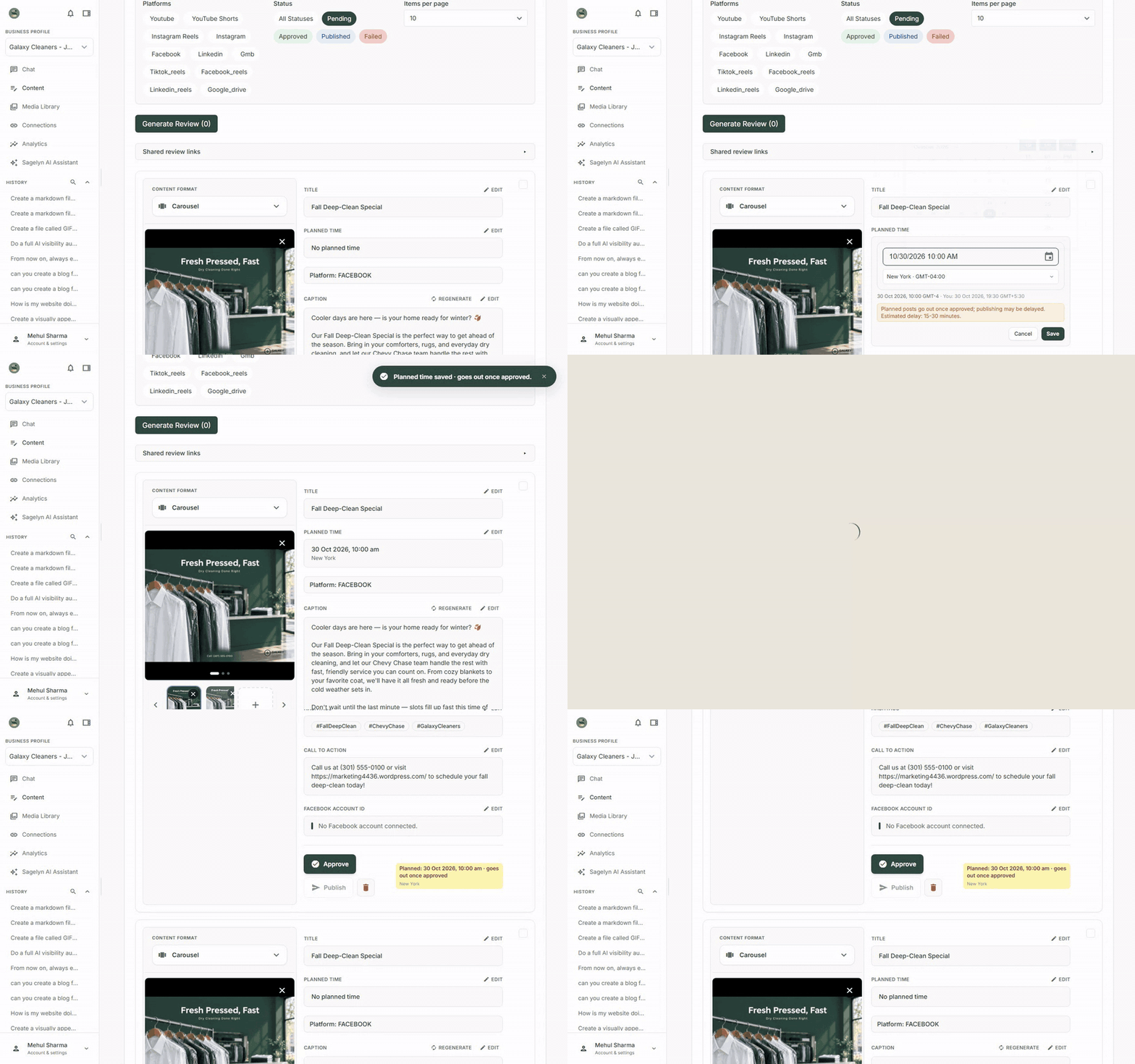
Give pending posts a planned date New
Preparing posts for a client to approve? In Review Posts, press Edit next to Planned time on a pending post and pick a date and time. The post then shows Planned: … · goes out once approved, so your client can see when each post is meant to go out. When the post is approved, its planned time becomes its schedule. If that time has already passed by then, Sagelyn asks whether to publish now or pick a new time, so nothing goes out late without you knowing.
See how people find you on Bing New
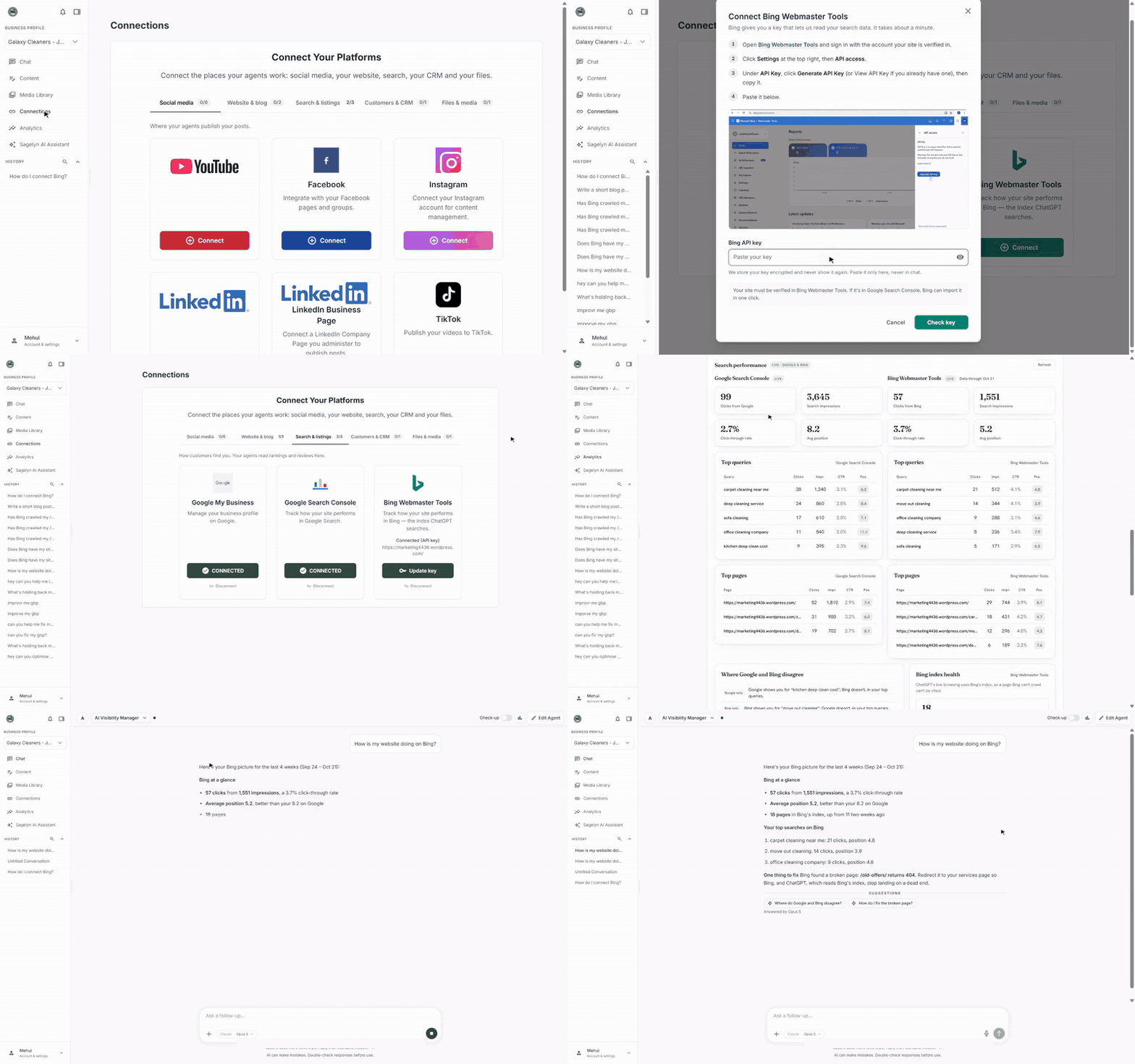
Open Connections and press Connect on Bing Webmaster Tools. Short steps and a guide show you where to create an API key in Bing Webmaster Tools. Paste it in, pick your site, and you're connected. Your AI Visibility dashboard then shows Bing beside Google: the searches that find you, clicks, impressions and position, the pages Bing has indexed, and any crawl problems. Ask your AI Visibility Manager How is my site doing on Bing? and it answers with your real numbers. We'll remind you in 90 days to replace the key.
Set up a new Brand in two quick steps Improved
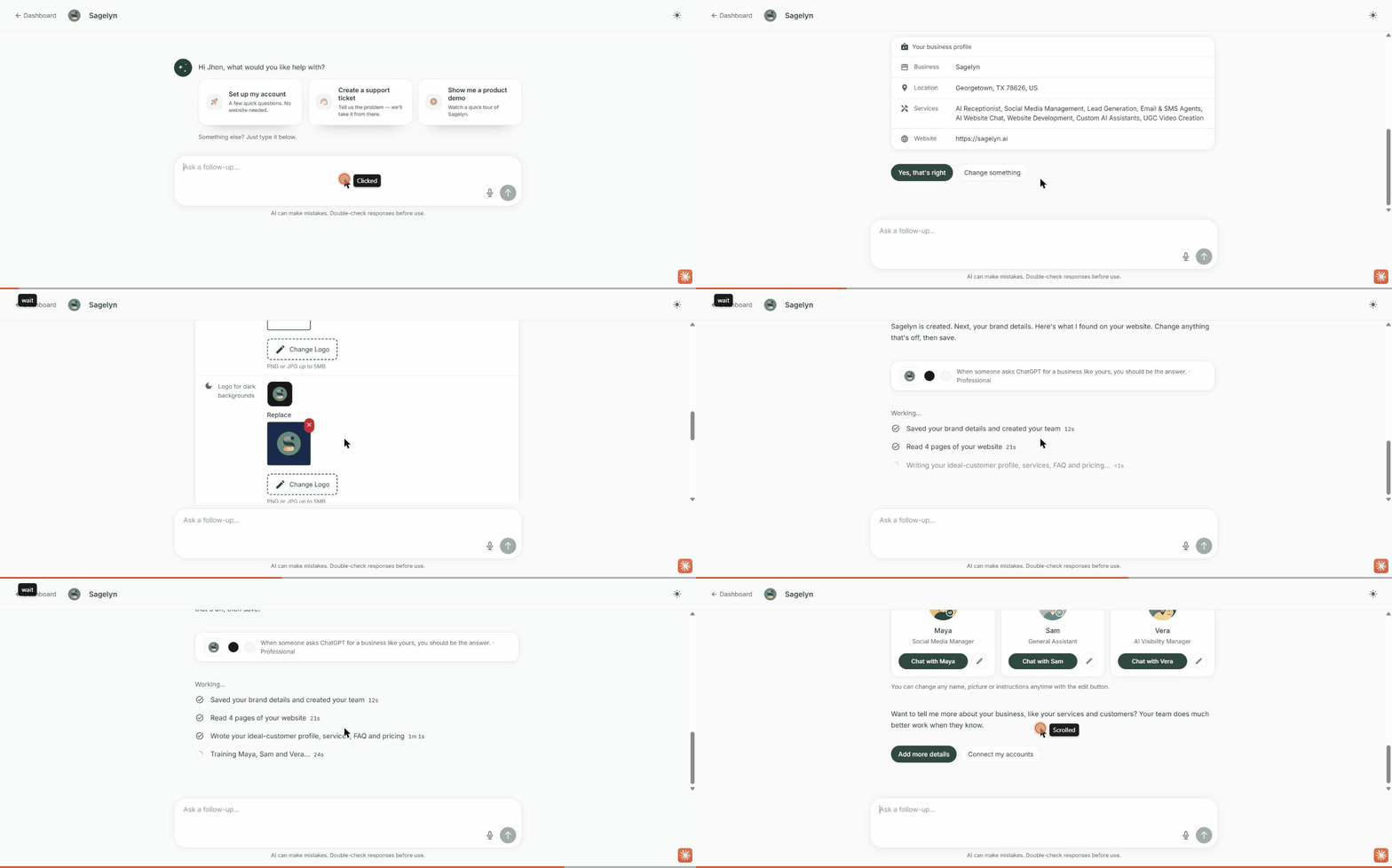
Setting up a new Brand now takes two steps in the setup chat. First, give your website, or your business name, city, state, zip code and country, and Sagelyn fills in your business profile. Check it and press Yes, that's right. Then check Your brand details: your logos for light and dark backgrounds, colours, tagline, brand voice and audience, already read from your website, each one editable. Press Save and set up my team and Sagelyn reads your website, writes starter knowledge for your agents about your ideal customer, services, pricing and the questions customers ask, and sets up your team. Only prices you or your website give are used. If none are known, the file says so and your agents ask you before quoting a price. Leave after the first step and you pick up at the second next time.
- Avatar videos are framed properly. Videos made with an avatar could cut the presenter off at the mouth or chest, and some older avatars couldn't make a video at all. Videos now show the full head and shoulders, and older avatars work again. Videos made before the fix need to be made again to pick up the new framing.
- Search Console data shows up. A connected Google Search Console could show no data, because Sagelyn asked about the wrong site. It now reads the site you connected.
- Agent profile pictures can be changed again. A new picture chosen in Edit Agent didn't save. It does now.